
A coach with two employees runs morning squads for children aged five to sixteen, private lessons in the afternoon and an adult doubles group on Tuesday nights — on five courts that the public can book whenever the club is not using them. This is that club, built and run in the live system.
A coaching club is not a shop. Almost nothing it does is a purchase: it is a timetable that has to hold, a small number of courts that two different audiences want, and — more than anything — a weekly conversation with a few dozen families about who is coming on Monday.
This page builds one from nothing and then runs a week of it. Every screen is the live system. The children are real user accounts carrying their parents’ phone numbers, the courts are real inventory, and the cancellation you will see was made by tapping Cancel on a parent’s account page.
An empty site to a running club, in the order it has to be done: the switches, then the people, then the courts, then the groups, then the rosters. No developer, no support ticket — every screen below is a page in the admin, and each step says what to click, what to type, and what you should see afterwards.
The order matters. Coaches and courts have to exist before a group can use them; a group has to exist before the system can generate sessions; sessions have to exist before a child can be enrolled. Work down the page and nothing will be missing when you need it.
Settings → Rental Settings → Events Settings. Nothing in this guide exists until these are on — with them off there is no group enrolment, no register, no self-cancel and no sessions page. Set four values and press Update at the bottom of the page.

Two settings, on the same screen, because one number was never right for both. A coach wants a couple of hours’ notice so it is still true when they read it; a parent wants a day, so they can rearrange the evening.
| Session Reminder Hours — parents | 24 |
| Session Reminder Hours — coaches | 2 |
The parent setting ships at 24 — the day before. Either can be overridden on a single class, so a Saturday morning squad can ask for 48 and an evening adult session for 3. Leave the parent one empty and it inherits the coach value, which is what a club upgrading from an older version keeps.
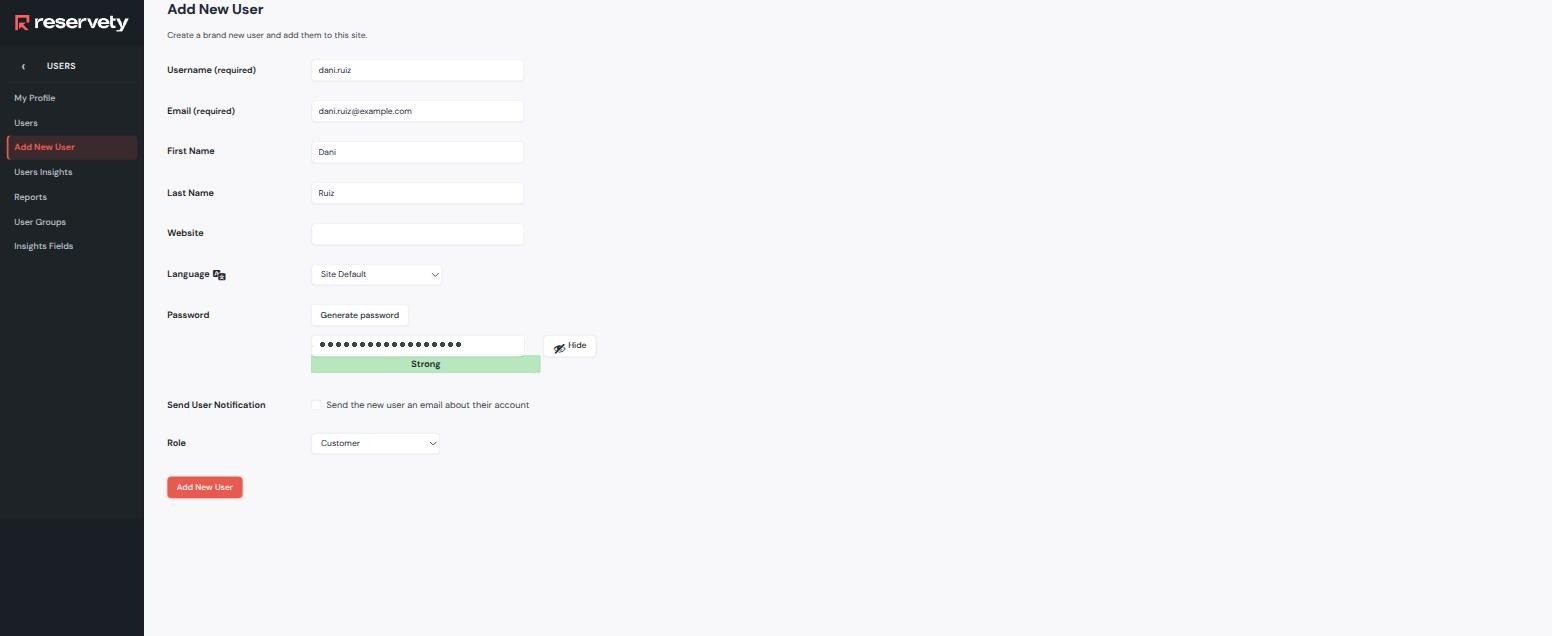
Users → Add New User. Fill in a username, the coach’s email and their name. Leave the generated password alone — you are not giving it to them here. Set Role to Customer, and untick Send User Notification unless you want the system to email them straight away. Press Add New User.
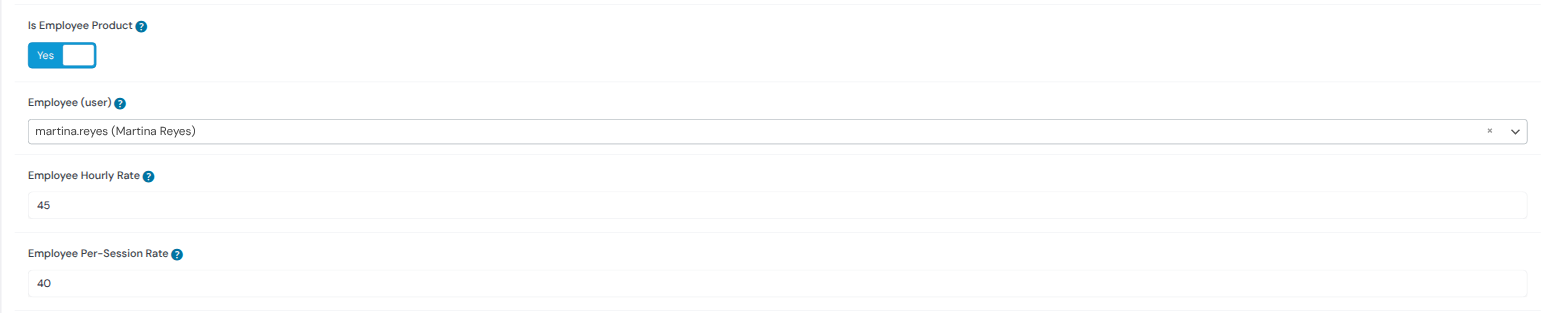
Open the person you just created (Users → Users → click their name) and scroll to the Employee section. It will say No employee product yet. Press Create employee product.


Why a button and not a role. Being a coach is not a permission, it is a thing that can be booked, scheduled and paid. Pairing creates that thing and links it to the person. It also means you can take a coach off the schedule without touching their login, and pay someone who never logs in at all.
Press Edit employee product on the same panel. Fill in the two rate fields and press Update.
Products → Add New. Name it Tennis Court 1 and set three things before you publish:
| Product data → Inventory | Manage stock ✓ · Quantity 1 |
| Product Serial Numbers → Is Serial | Yes |
| Publish box → Catalog visibility | Hidden |
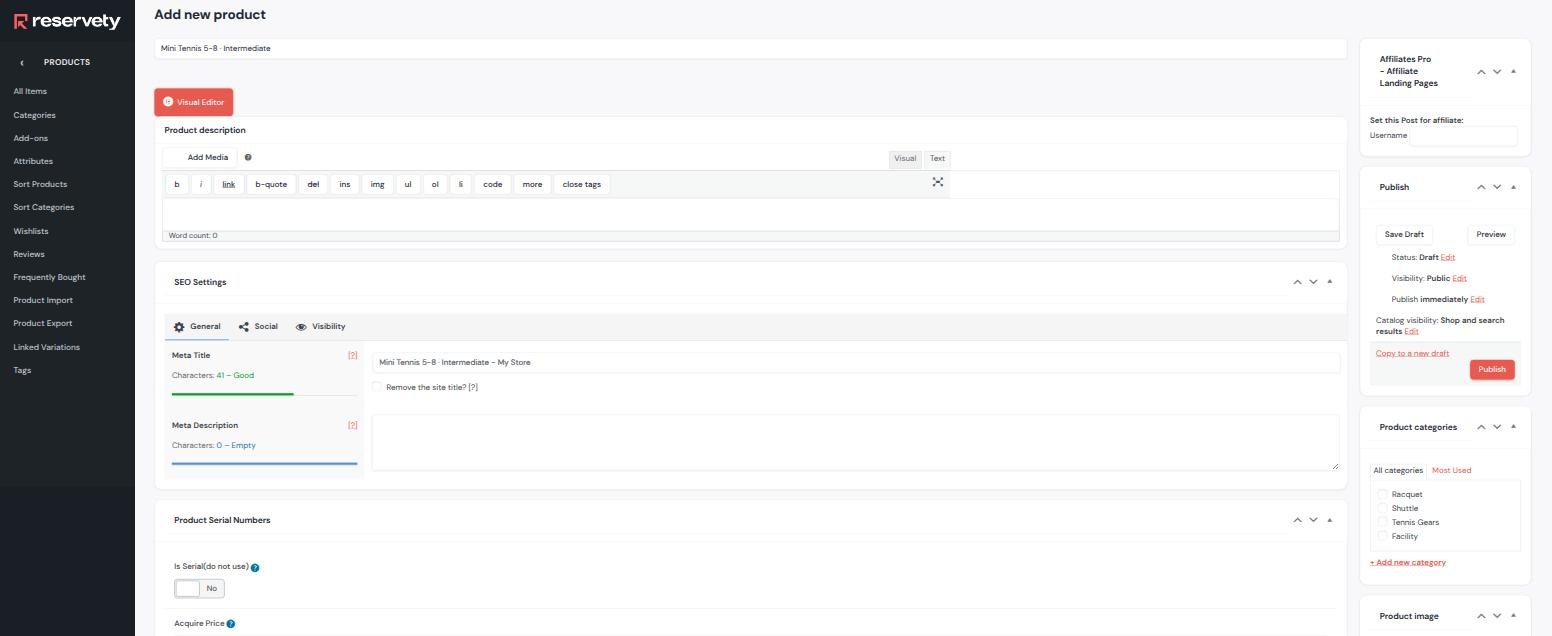
Why hidden, and why “is serial” Nobody books “Court 3”; they book a court. Hidden keeps the individual courts out of the shop, and Is Serial is what makes each one countable as a unit. Skip the flag and the listing in the next step counts nothing, its stock stays at zero and it reads fully booked on every date.
Add one more product — Tennis Court Booking — and this one stays visible. It is the only court thing a customer ever sees.
| Item Types → Is Bookable Product | Yes |
| Use Default Type / Type | No · Start and End Date and Time |
| Bookable Pricing → Period / Price | 1h / 18 |
| Product Serial Numbers → Use Serials | Yes |
| Serials | the five courts |
| Serial Selection | Random |
| Inventory | Manage stock ✓ · Quantity 5 |

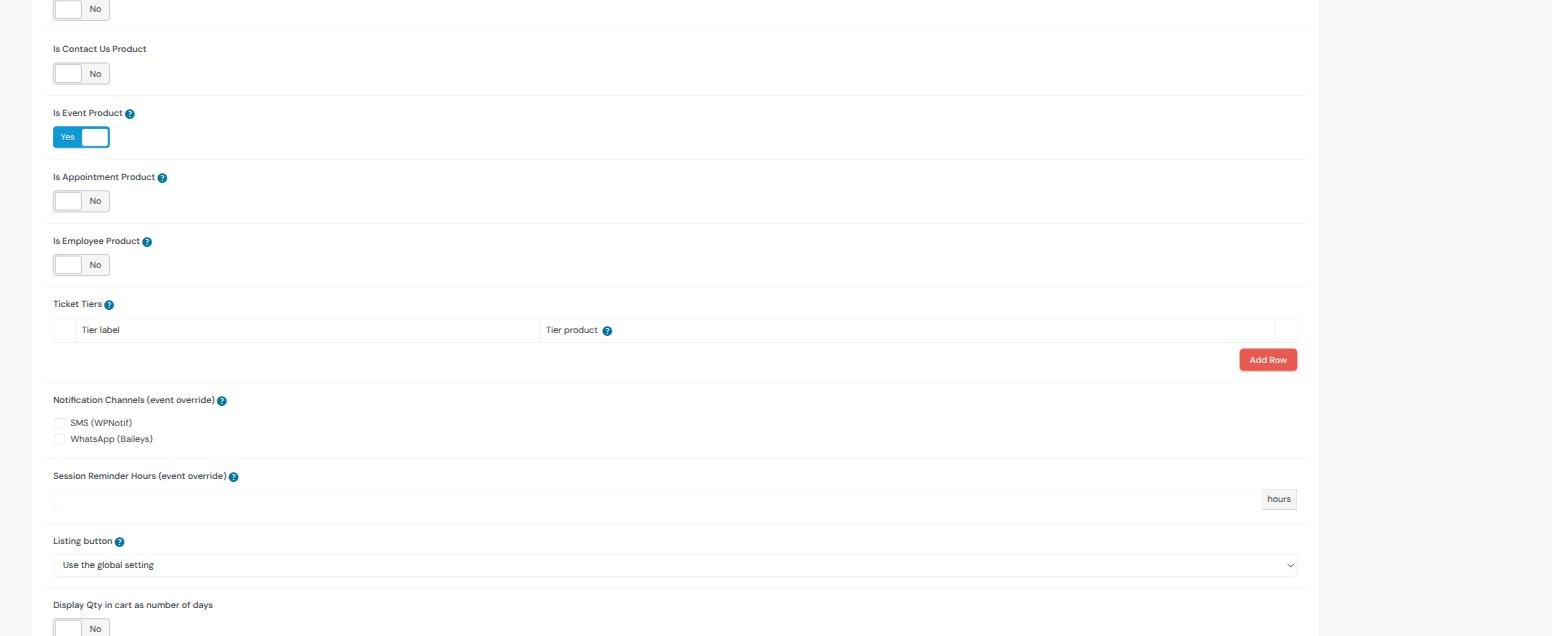
Products → Add New again. Name it the way parents will recognise it — Mini Tennis 5-8 · Starter — and in the Item Types panel set Is Event Product to Yes. That one switch is what turns a listing into something with sessions, a register and a check-in.
Two fields, on the same product. First the kind of booking, in the Turnover Padding Min Max panel:

Then the timetable itself, a little further down the same panel. Set Use Default Start Times to No, press Add time slot, and fill in one row.
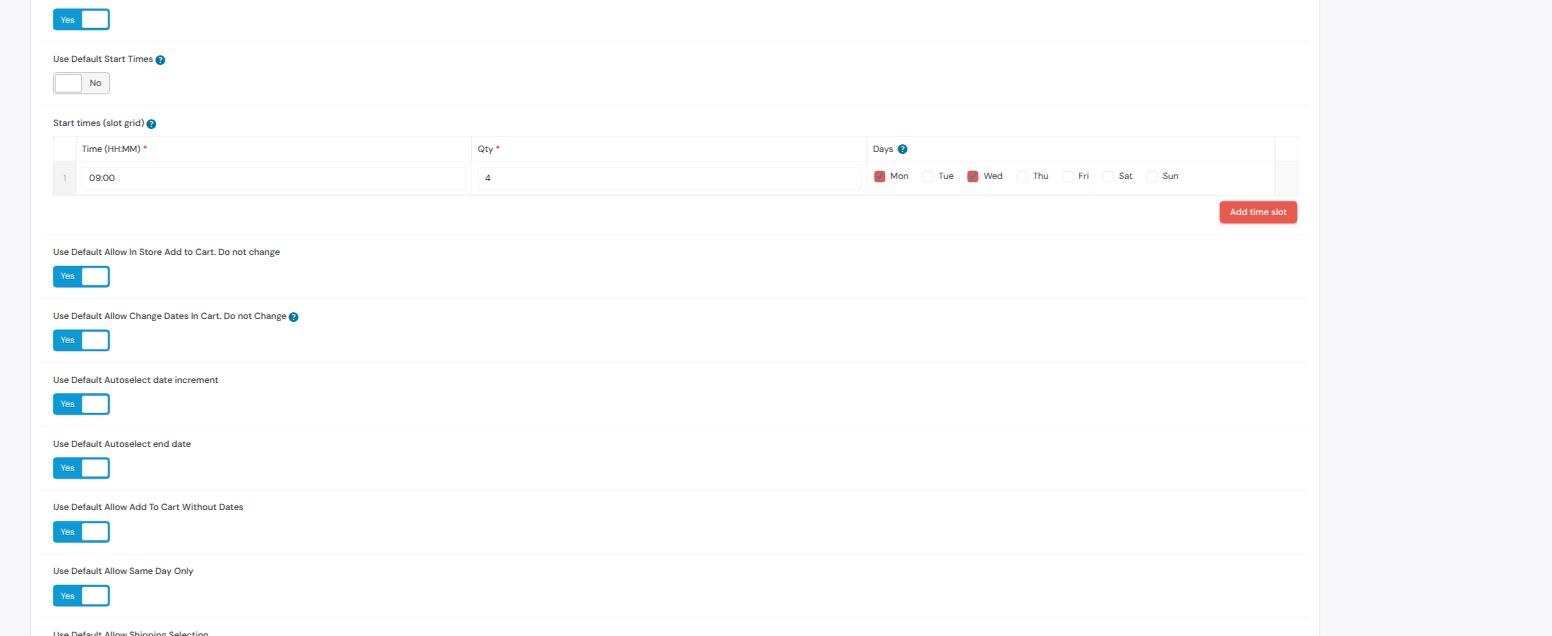
One group, one product. A ten o’clock class for the same age band is a second product, not a second row — it has its own roster, its own coach and its own register. Rows in this grid are for the same group meeting more than once a week, which is why Monday and Wednesday sit on one row here.
Everything in 0.9 can also be done — and a good deal more of it — in the Event Schedule box further down the same product screen. It is not a second timetable competing with the first. It reads and writes the same rows: open it on the class you have just published and the row is already sitting there.
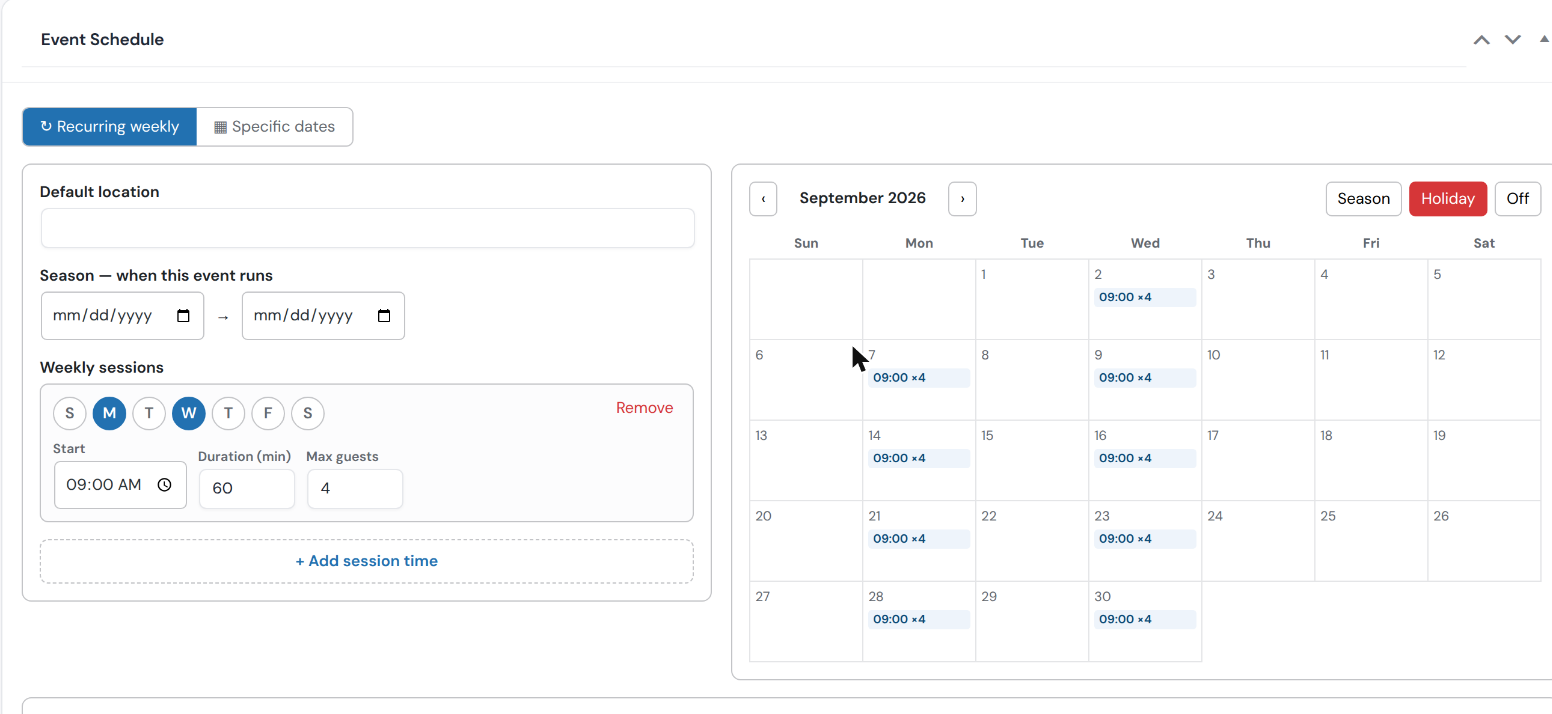
Two tabs across the top. Recurring weekly is what a class uses. Specific dates is for something that does not repeat — a holiday camp, a tournament — where you click individual days instead of weekdays.
On the left, three things:
On the right, a month, and three brushes above it:
The blue chips on each day (16:00 ×4) are the sessions that day will produce — start time and places. They are the check. If a Friday in term time has no chip on it, no class is going to be generated there.
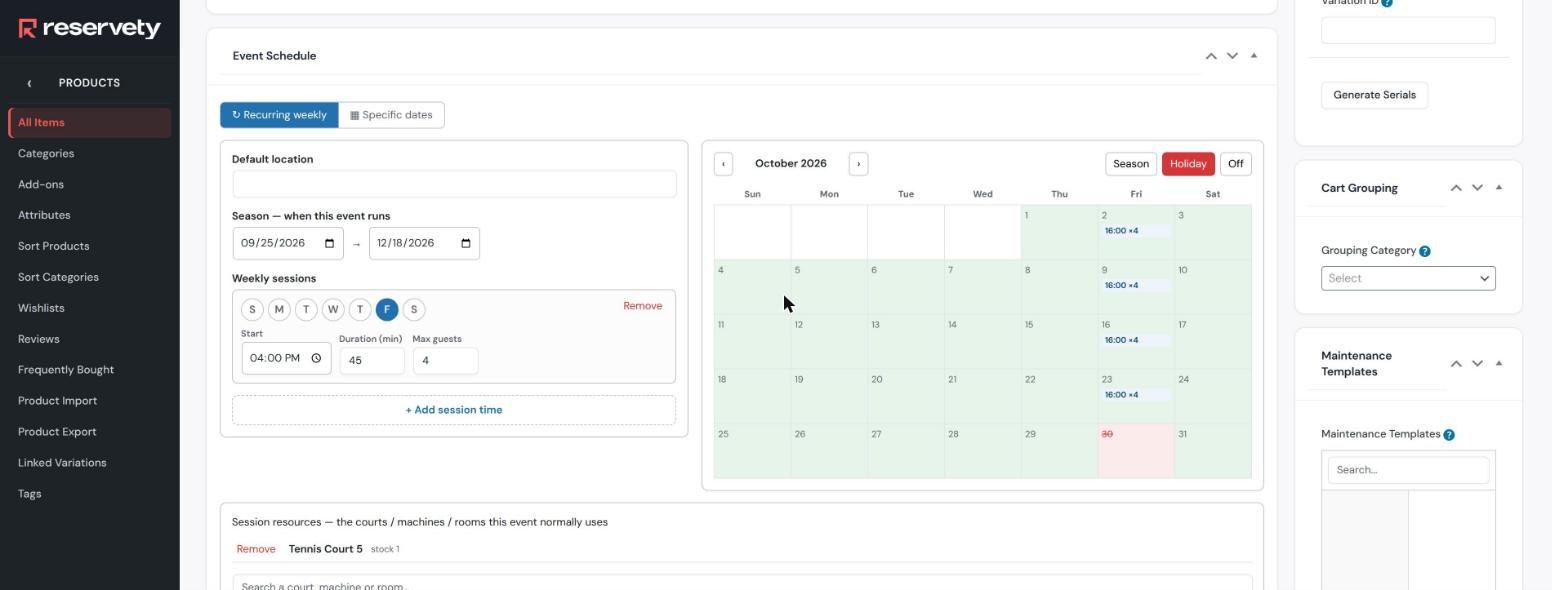
Duration is real. Set 45 and the session runs 16:00–16:45: the court is held for forty-five minutes, not an hour, and the next lesson can start at quarter to five. Until this guide was written that field was honoured on one screen and ignored on the two others that matter — the calendar and the coach’s board — so a 45-minute class showed as an hour everywhere a human would look. It is fixed; leave it blank and a slot is an hour, as before.
Below the calendar sits Session resources — the courts / machines / rooms this event normally uses. Search a court and it becomes this class’s default. Then two buttons, and the difference between them matters:

Which one should a club use. Both, and for different classes. The slot grid in 0.9 is faster for a plain weekly group: one row and you are done. The Event Schedule editor is what you want the moment a class has a term, a half-term, a fixed court, or a length that is not an hour. Whatever you set in one appears in the other, so there is nothing to keep in step by hand — but the box is the whole timetable, so what it shows when you press Save schedule is what the class becomes.
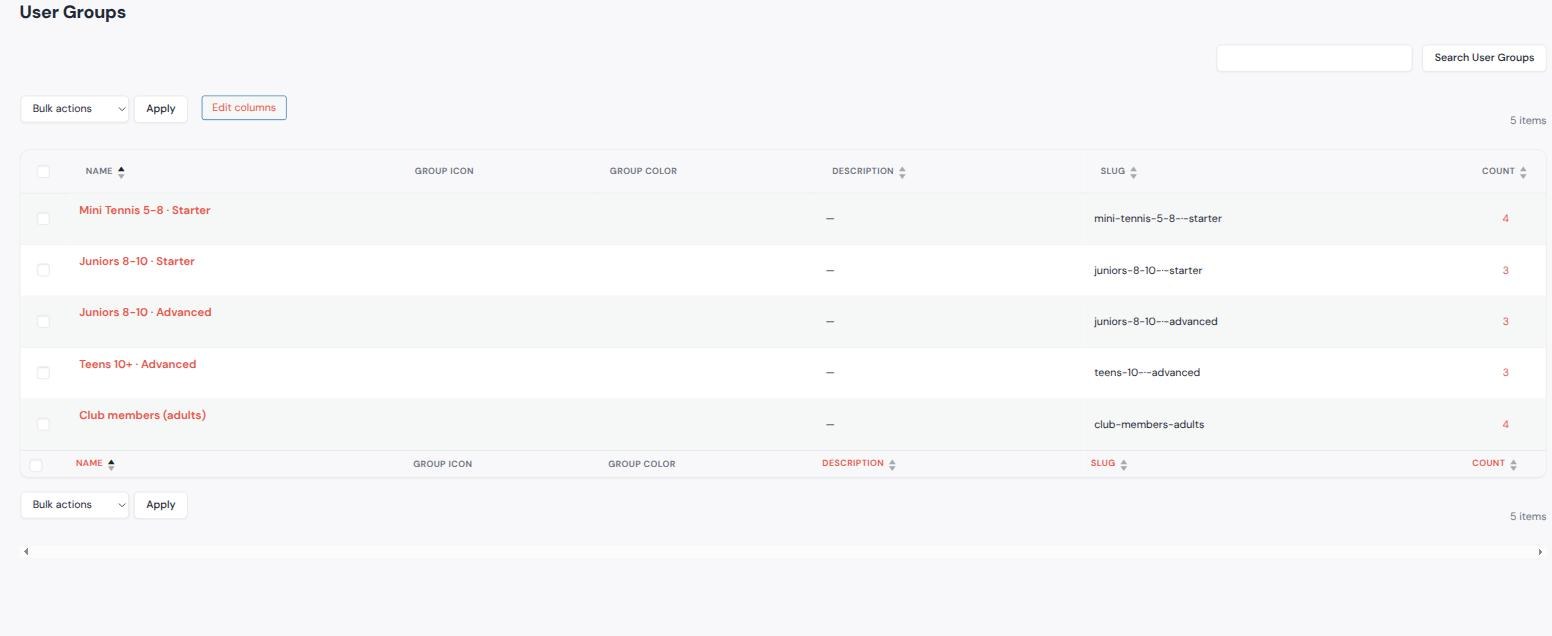
Users → User Groups. Type the group’s name and press Add New User Group. Do it once per squad, plus one for the adult members.

Money in a coaching club does not look like a shop. Nobody checks out. A parent hands a coach cash in a car park in September and the child then turns up to twelve sessions of varying length until Christmas. So each child gets a wallet: a running balance that goes down when they are checked in and up when they pay.
Settings → Rental Settings → Rental Setup. Turn Class Wallet: Enabled on and set a default hourly rate.

That is the club default. A squad that costs more or less sets its own rate on its own product, in the Class Wallet: Hourly Rate field that appears once Is Event Product is on.

Three levels, most specific wins. Child, then class, then the club default. Empty means inherit, but 0 is a real rate and means that child or that class plays free — it does not fall back to the default. The roster always shows which level a price came from, so a stray per-child override is visible rather than silently winning.
This is not the coach’s rate. What you charge a child and what you owe a coach are different numbers that happen to both be per hour. The coach’s rate stays on their employee product (0.5) and feeds the payout ledger. A club does not charge a parent more because the head coach covered that week.
At this point you have a club. Three coaches who can be scheduled and paid, five courts, one public listing that hands them out, four groups with a timetable, and five empty rosters. Nothing has been booked yet and no child exists. Everything from here is running it, not building it.
The club’s hardest recurring job: hold the right courts at the right hours, put the right coach on each one, and do it for a whole term without touching thirteen weeks one at a time.
Four weekly slots produce every session in the month. Nothing here was created by hand.
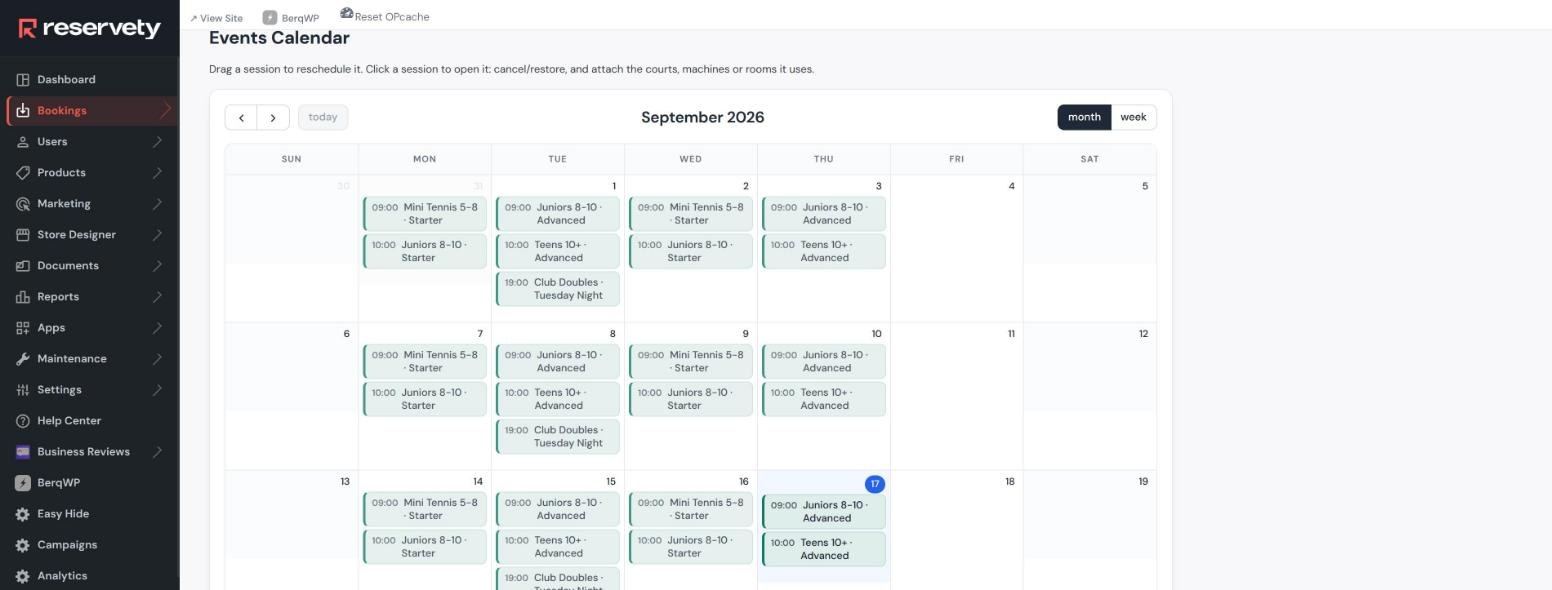
Clicking a session opens it. Attaching a court writes a real block against that court for that hour — the blocked pill is not decoration, it means the public cannot book that court then.
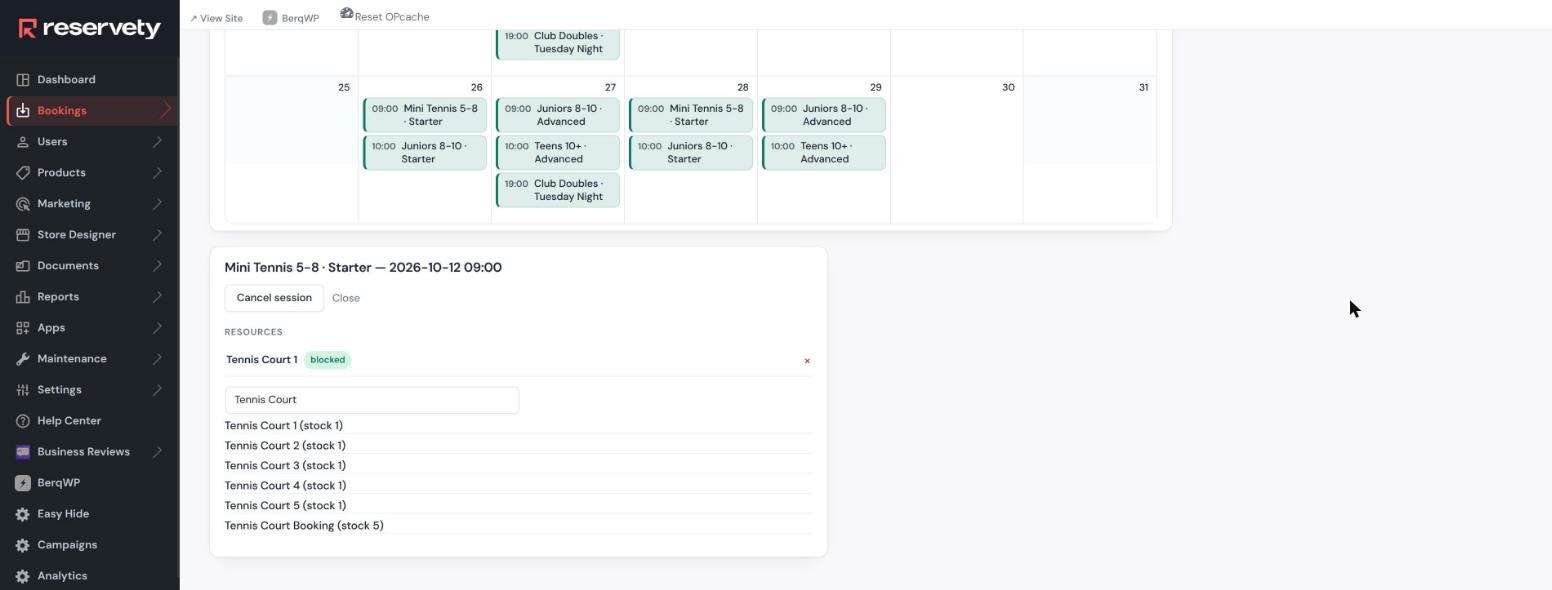
The question every recurring class raises is asked in the page, with a real way out. Choosing the series applies the court to this session and every future one at that weekday and time, skipping any that clash rather than double-booking them.

What the club actually did. Nine clicks — one per group per weekday — produced 117 court blocks across the term. Courts 4 and 5 were never held, so they stay open to the public all week.
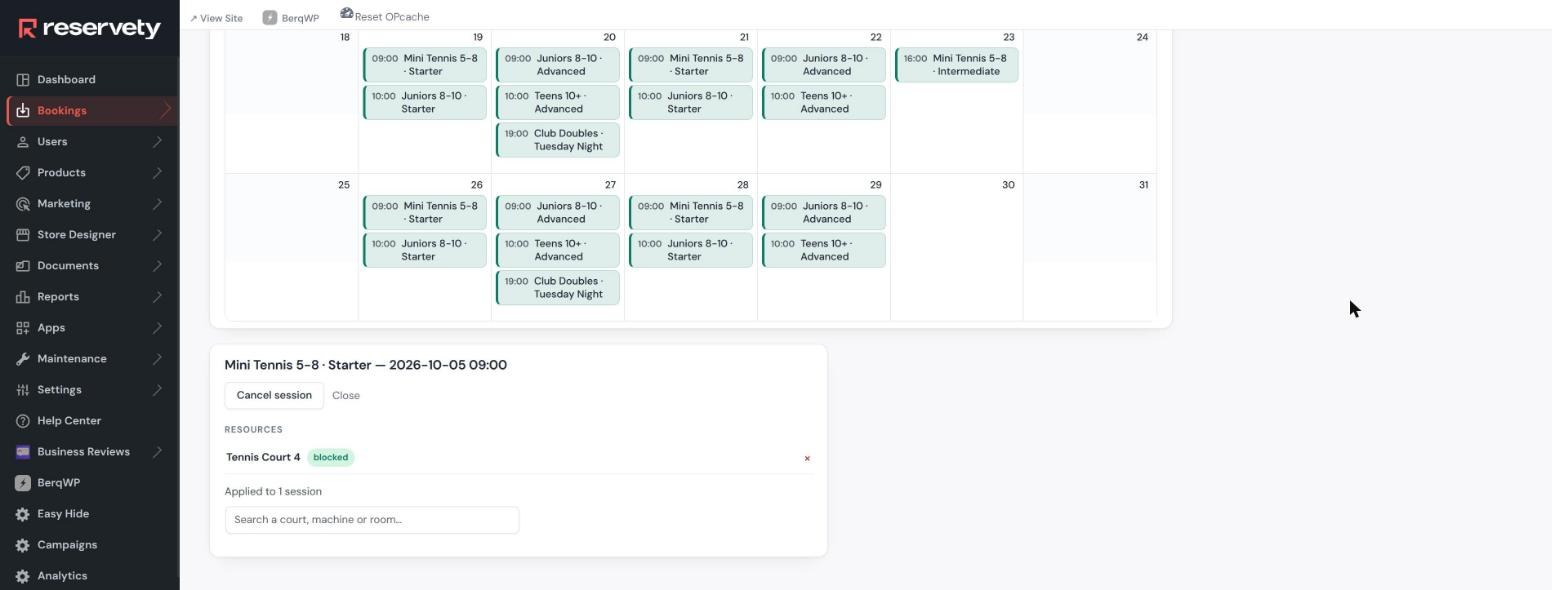
Court 1 is resurfaced on the fifth of October, so that Monday’s Mini Tennis moves to Court 4 — one session, not the series. The report line says exactly what happened.
Coaches are assigned on the board by dragging them onto a session, and the same series question is asked. Every assignment writes a hold on that coach’s own calendar, so the afternoon private-lesson picker will not offer a coach who is teaching a squad.


The club’s own rule: the child is the member, the parent is the contact. One account per child, carrying a parent’s phone number and email.
A new child joins the Wednesday juniors. The coach does not create an account, set a password or send an invitation — they type a name and a phone number into the bottom row of the register they already have open.
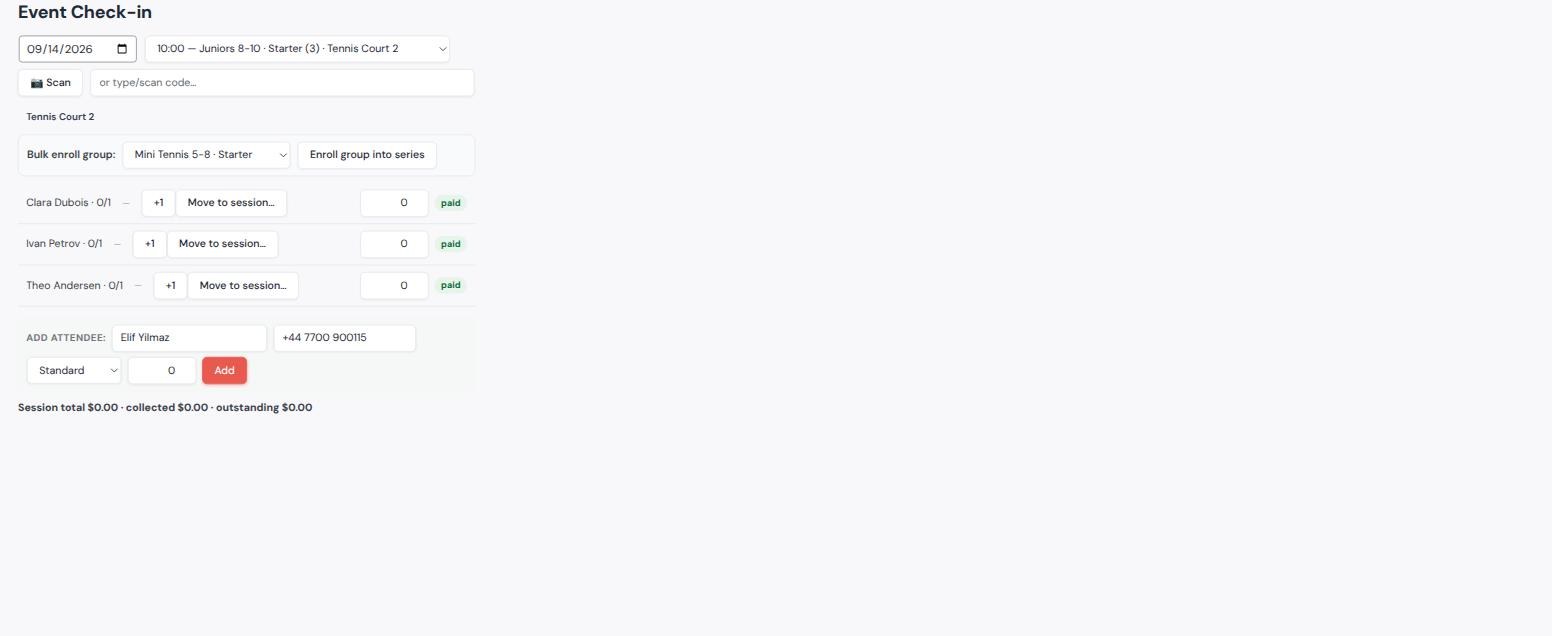
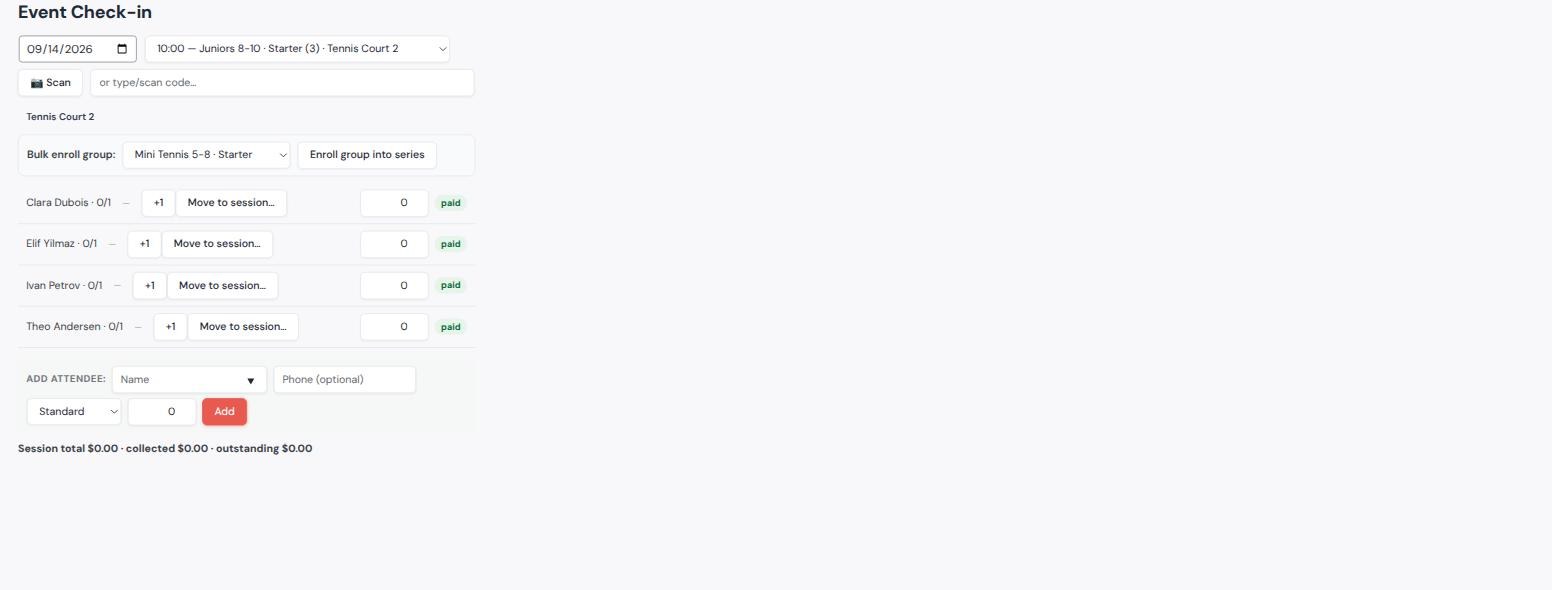

Type the same name next term. The name box is a type-ahead over children the club already has. Typing “Eli” offers Elif Yilmaz — +44 7700 900115, so picking her re-uses the existing account and her parent’s number rather than creating a second Elif. That matching is scoped to class attendees, so a customer with a similar name can never be turned into a pupil by accident.
Why a real account. Capacity, tickets, check-in, reminders, the waiting list and the parent’s own page all key off a user. Inventing a lighter “guest attendee” would need a second path through every one of them. These accounts never log in unless the family wants them to, and never get a welcome email.
The rosters were created empty back in 0.9. Fill them from Users → Users Insights: tick the children, then Add to group. This is the step that makes the next one possible, and the one that gives a child their own sessions page.
On the register, Bulk enroll group → Enroll group into series puts every member of the squad into every remaining session of that weekday and time.
Measured on the demo. Mini Tennis’s Monday series: 48 enrolments in 15 seconds, with the four children already added by hand correctly reported as skipped. The Wednesday series added 52 more. Each one is a real $0 order, reservation and ticket, which is why the batch is capped — 300 for an administrator, 100 for a coach.
The part the club cares about most. Everything above is preparation; this is the weekly conversation with twenty families.
The child’s own account page carries the term: which squad, when it runs, who takes it, which court, and a button per session.

This page was a flat list until this build. Twenty-six identical rows, no coach, no court. Grouping it, and saying out loud which week is different, is the change that makes it worth a parent opening.
Cancelling is one tap, so it asks first — quoting the class and the date, with Keep my place as the safe answer.
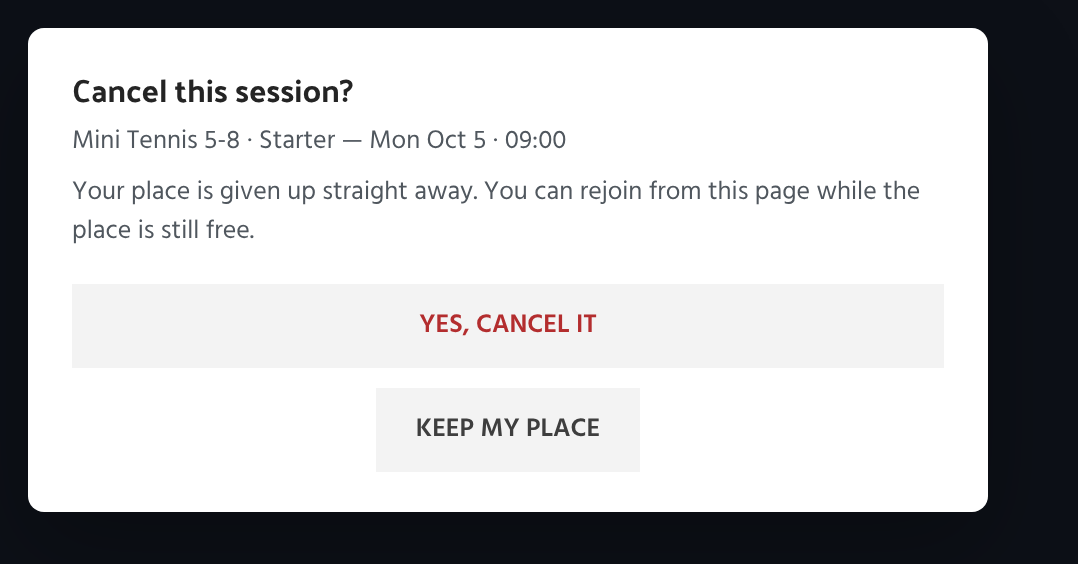
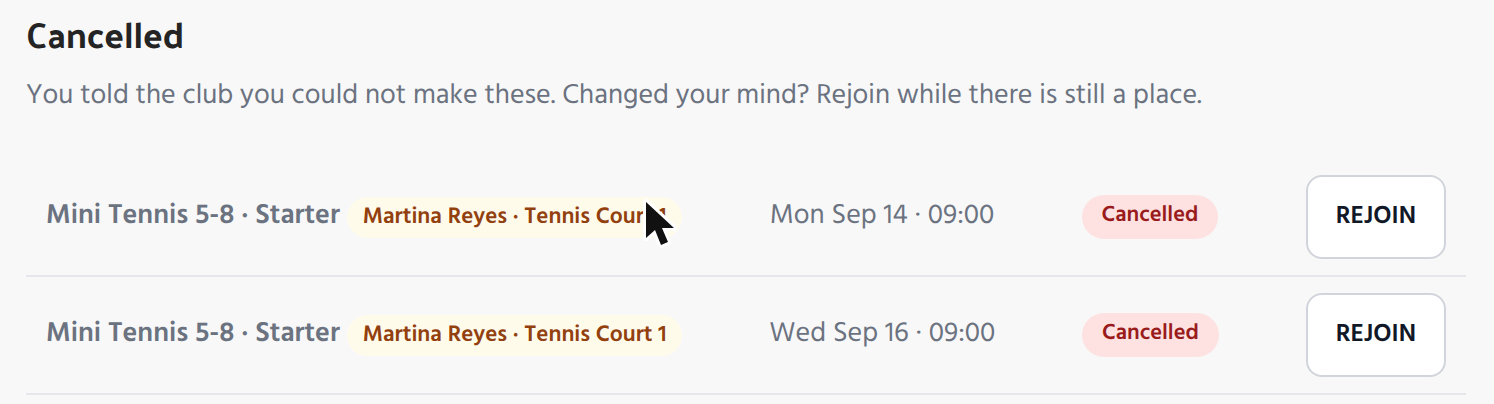
An answer that only says no is half an answer. Cancelled sessions that have not started yet sit in their own section with a Rejoin button, and rejoining is honest: it fails if somebody else has taken the place.
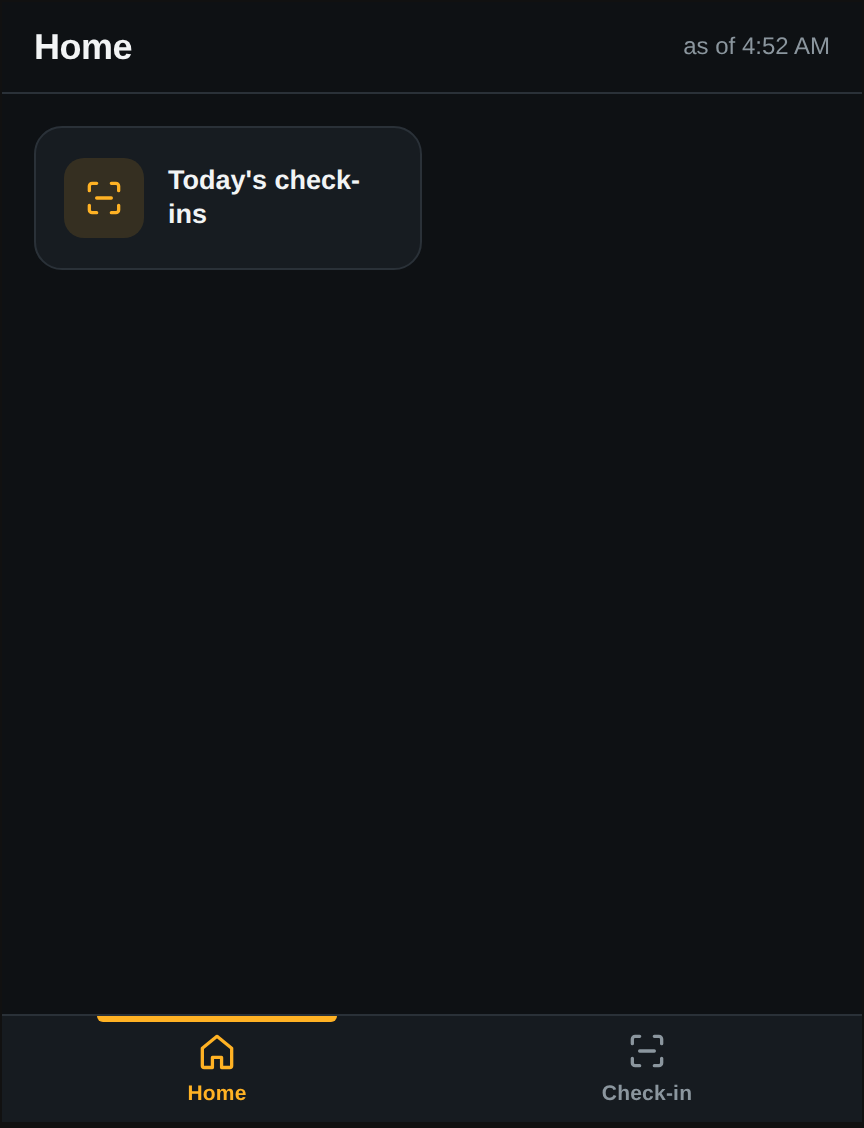
Monday, nine o’clock. The coach opens one screen on a phone and works from it.
There is a real app for this — installed on the coach’s home screen, full screen, no browser bar, and it keeps working when the court has no signal. It ships switched off, so the club turns it on once.
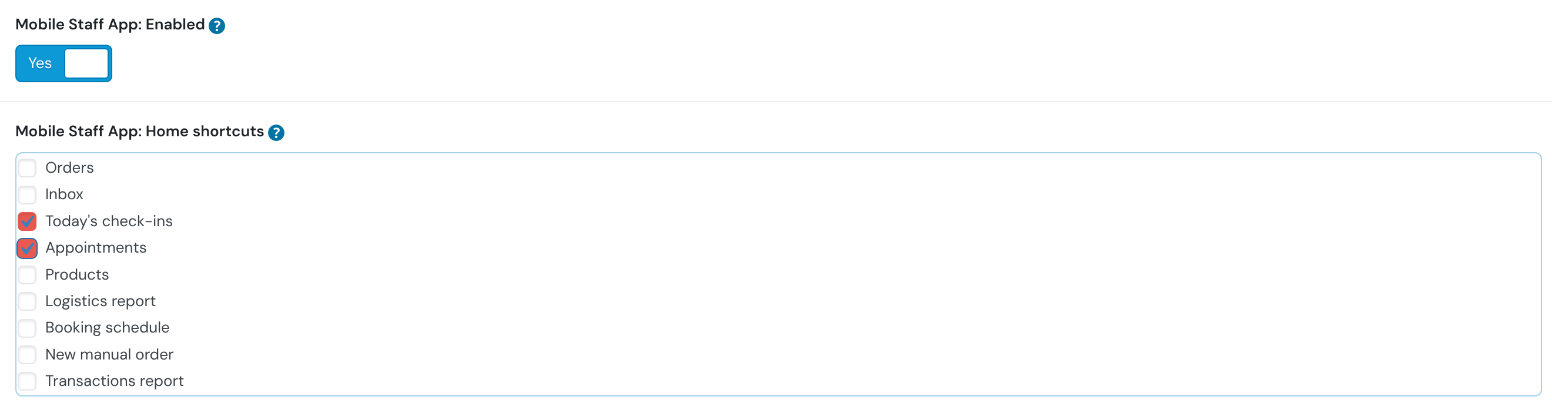
Settings → Rental Settings → Rental Setup, and set Mobile Staff App: Enabled to Yes. A second field appears underneath: Home shortcuts, which decides what the app’s home screen offers. Tick nothing and staff get all nine tiles. The club ticked two.
Each coach then opens yourclub.com/bb-app/ on their phone once, signs in with their own account, and adds it to the home screen — Add to Home Screen on an iPhone, Install app on Android. From then on it is an app.
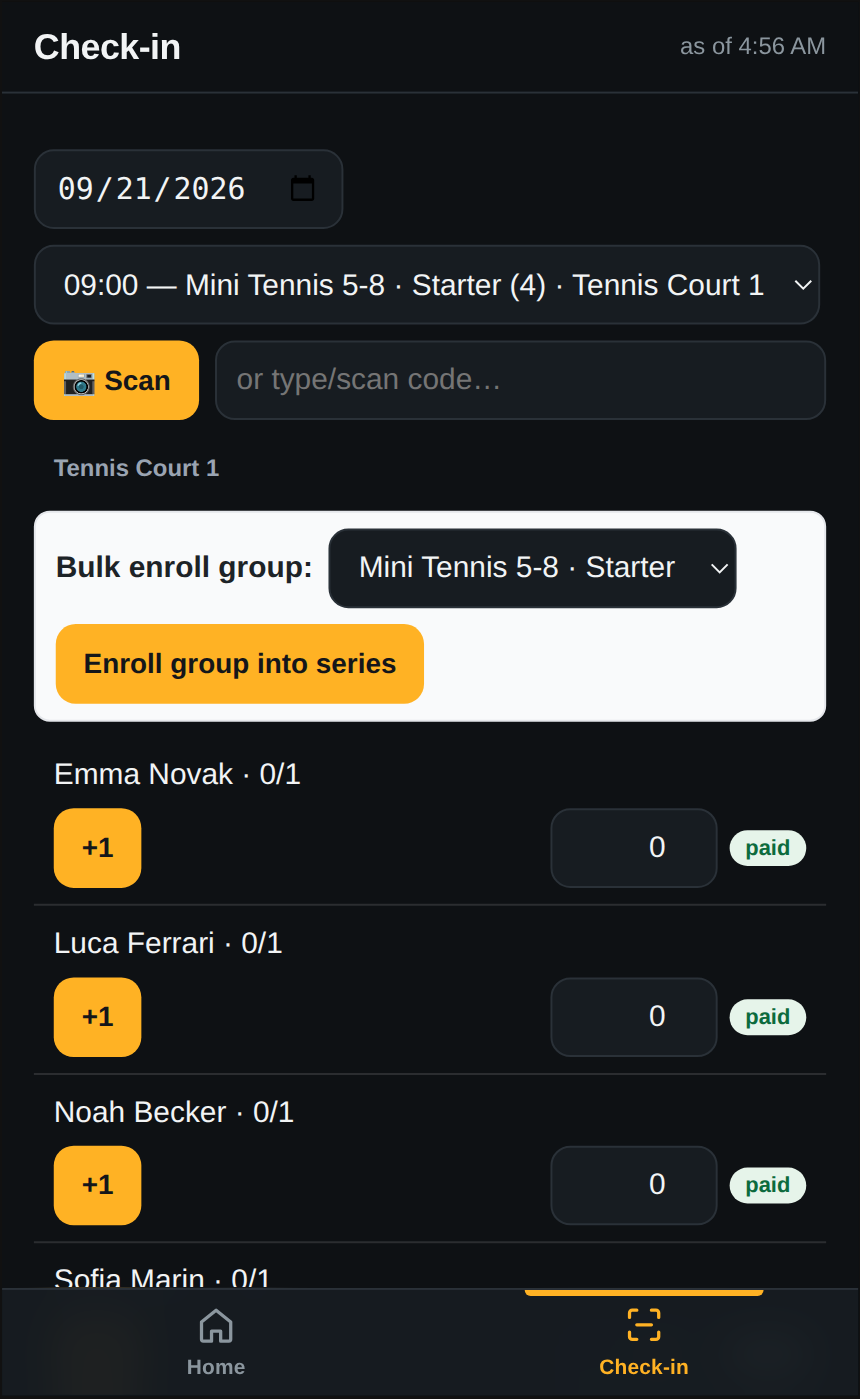
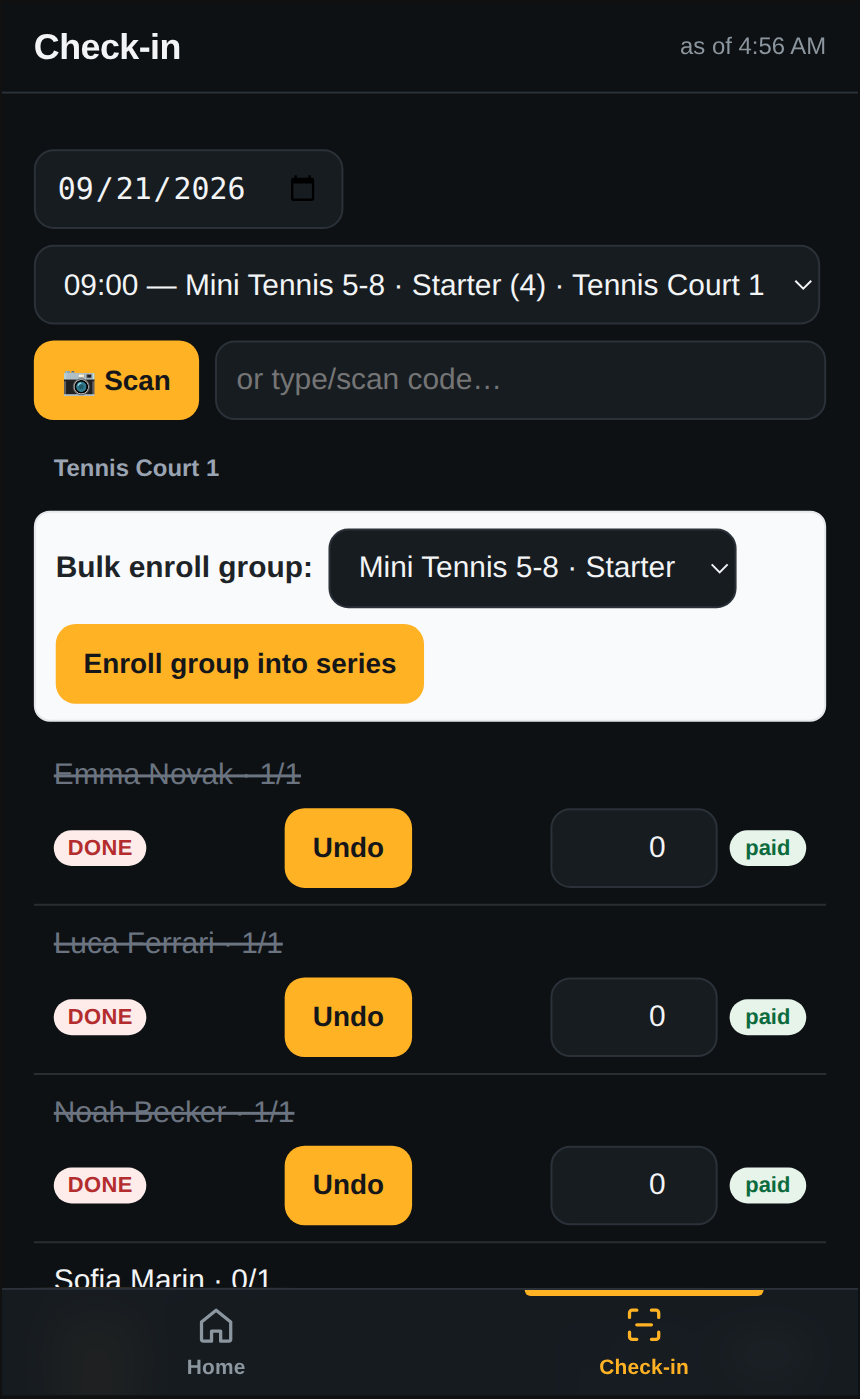
The Scan button and the code box next to it are for a club that issues barcoded tickets — point the camera at a family’s phone and the child is checked in. A coaching squad of four rarely needs it. A holiday camp with a hundred children does, and it is the same screen.
A coach is not an administrator. Building this part turned up three things that assumed otherwise. The app’s home screen refused anyone without shop-manager rights, so a coach signing in was told they had no access and had to type the check-in address by hand. A Move to session button was drawn on every roster row that the server would always refuse. And two labels on the register — Bulk enroll group and Add attendee — came out white on white against the app’s dark theme, because that screen was styled for the white admin. All three are fixed, and what is above is the result.
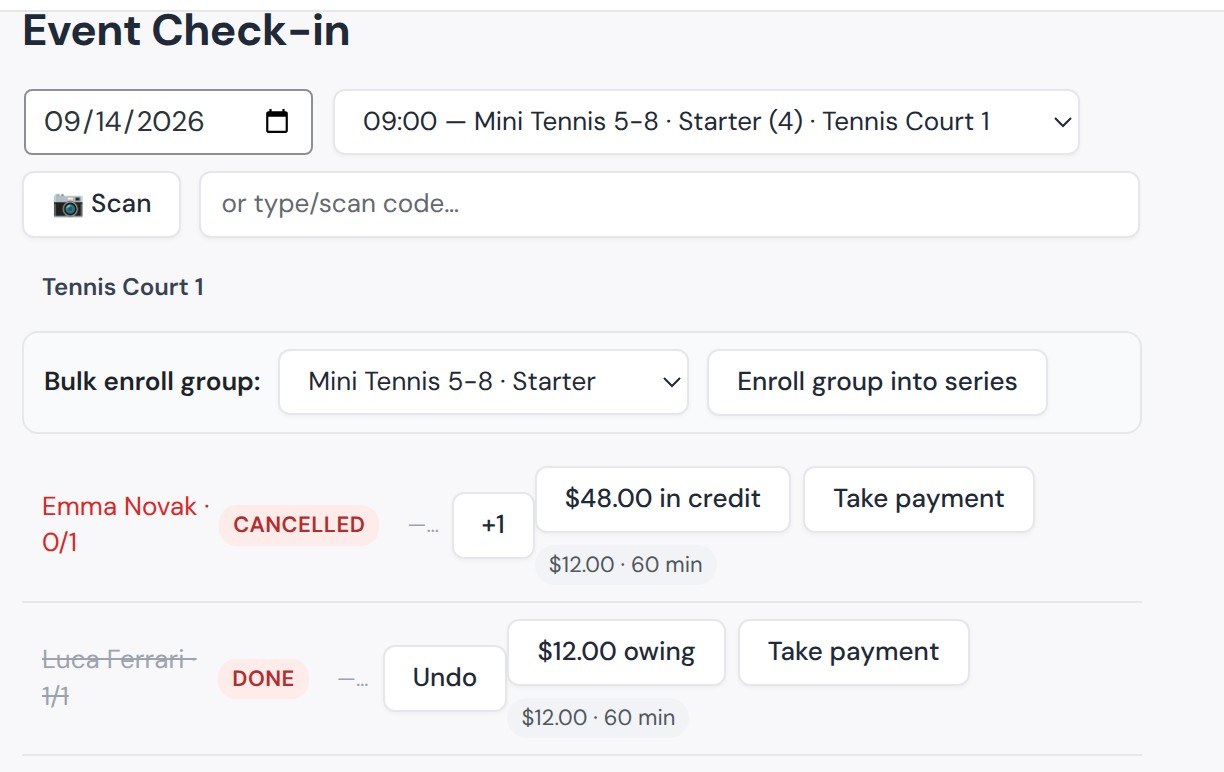
The session picker names the court. Emma’s row is red and says Cancelled — the club was told on Friday, and the place is free.
The coach types the first letters of the next child’s name; she is offered with her parent’s number already attached, because she was entered once before. Then attendance: one tap each.
A club builds next week over a few days — a court moved, a coach swapped, a class cancelled — and only then is it worth telling anyone. So the schedule goes out when the admin says so, from a button on the Events Calendar.

One message per person, covering their whole week. A child in two squads gets one email, not two; a coach with ten sessions gets one, not ten. And the two audiences get deliberately different things.
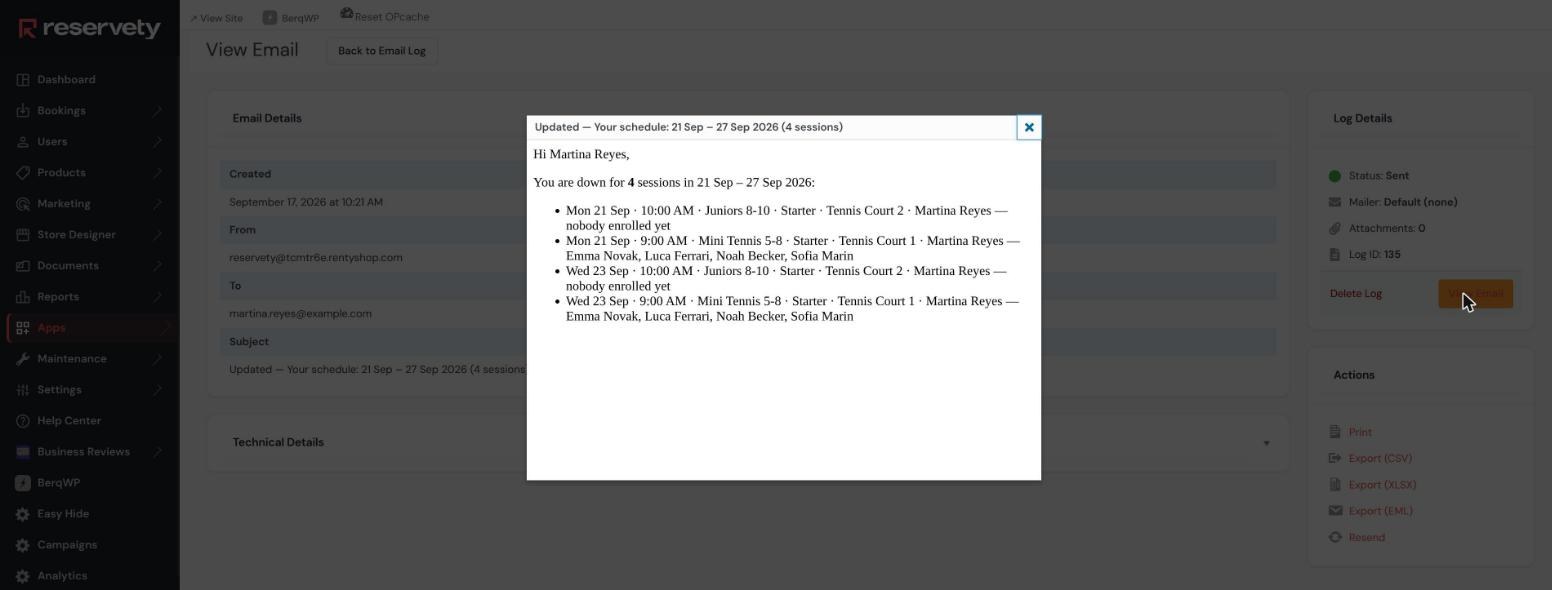
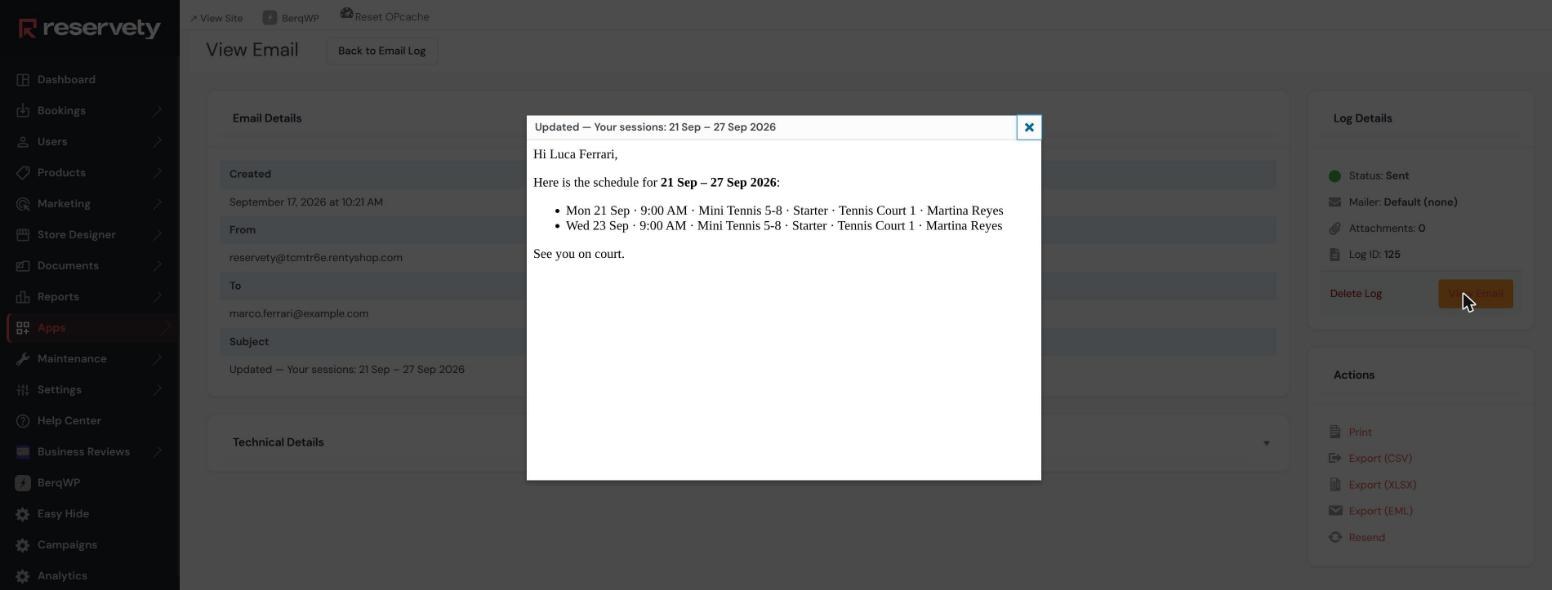
Rain on wednesday. Move a court, press the button again. The second copy is headed Updated — so a parent does not read it as a duplicate and ignore the very change that prompted it.
The same message, other channels. Email always goes. If WhatsApp or SMS are switched on in Notification Channels, the same message follows on those — the plain-text version of the very same template, so nobody maintains two that drift apart. WhatsApp needs the gateway connected; SMS needs WPNotif.
Everything the club has to be able to answer on a Sunday evening: who owes money, who has been turning up, and what each coach is holding.
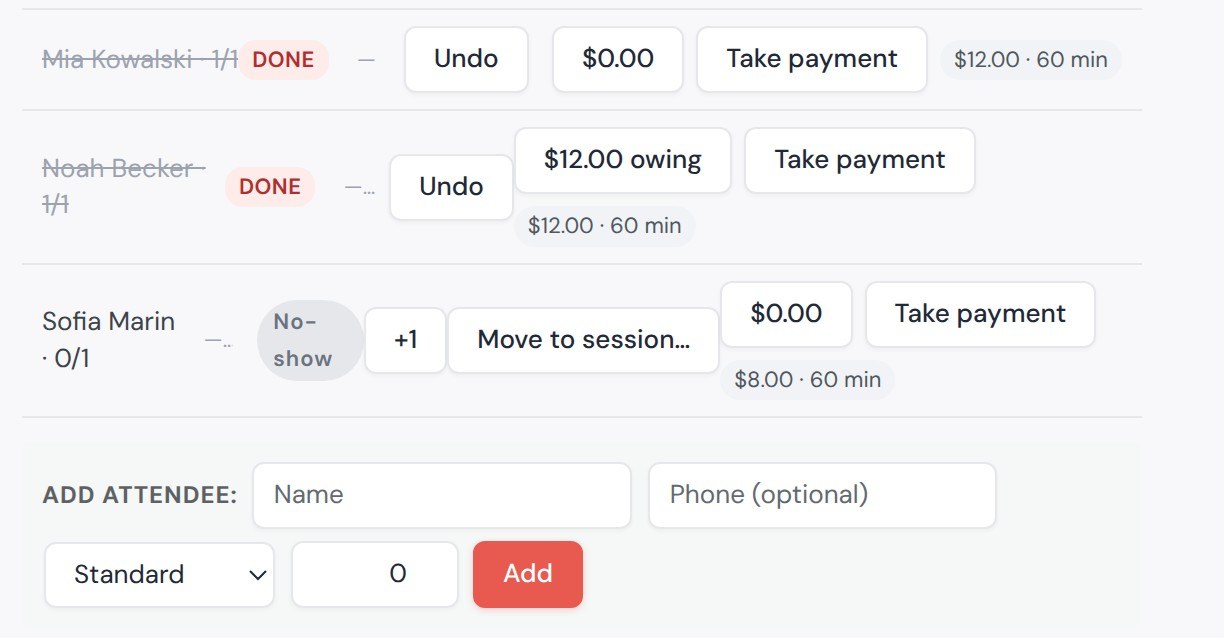
Emma’s mother hands Martina $60 at the start of half-term. The coach taps Take payment on Emma’s row, types 60, leaves it on cash, and that is the whole transaction. No order, no checkout, no invoice.
Then the class is checked in, and each child’s wallet is charged for the session automatically. Tapping the balance opens that child’s ledger.

A balance is allowed to go below zero, and that is the point: it is how a club actually runs. Luca and Noah were checked in without paying, so each owes $12.00. Sofia did not come, so she was charged nothing at all.
A parent pays what they have. The amount box prefills whatever would clear the balance, and accepts anything above zero. Less leaves the rest owing; more becomes credit. Nothing caps a prepayment — paying a term up front is the case the wallet exists for.
Cash handed to a coach in a car park leaves the payer with nothing in their hand. So a payment — and only a payment — sends one.
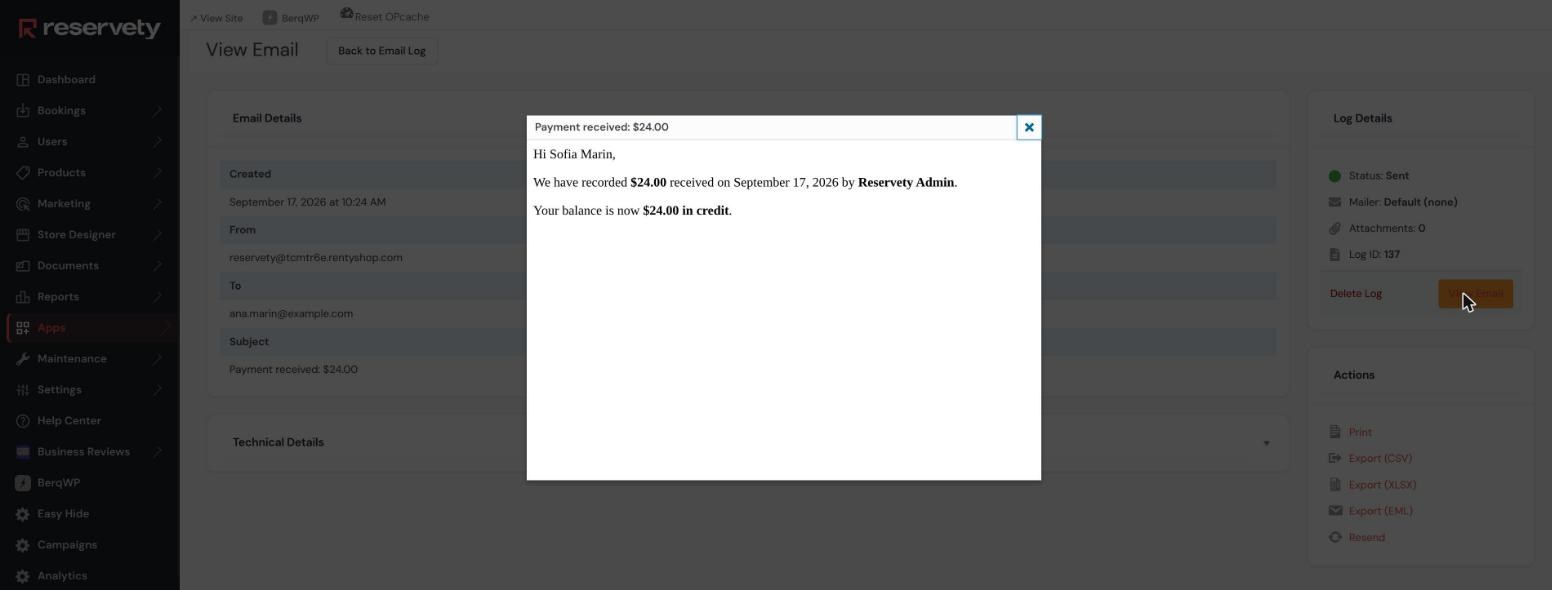
Only payments. A message for every session charge would be noise a club switches off within a week, and the running balance is already on the parent’s own account page. Nothing else in the wallet notifies.
WooCommerce → Class Money. Who owes, how much, when they last paid and to whom — and what each coach is holding.
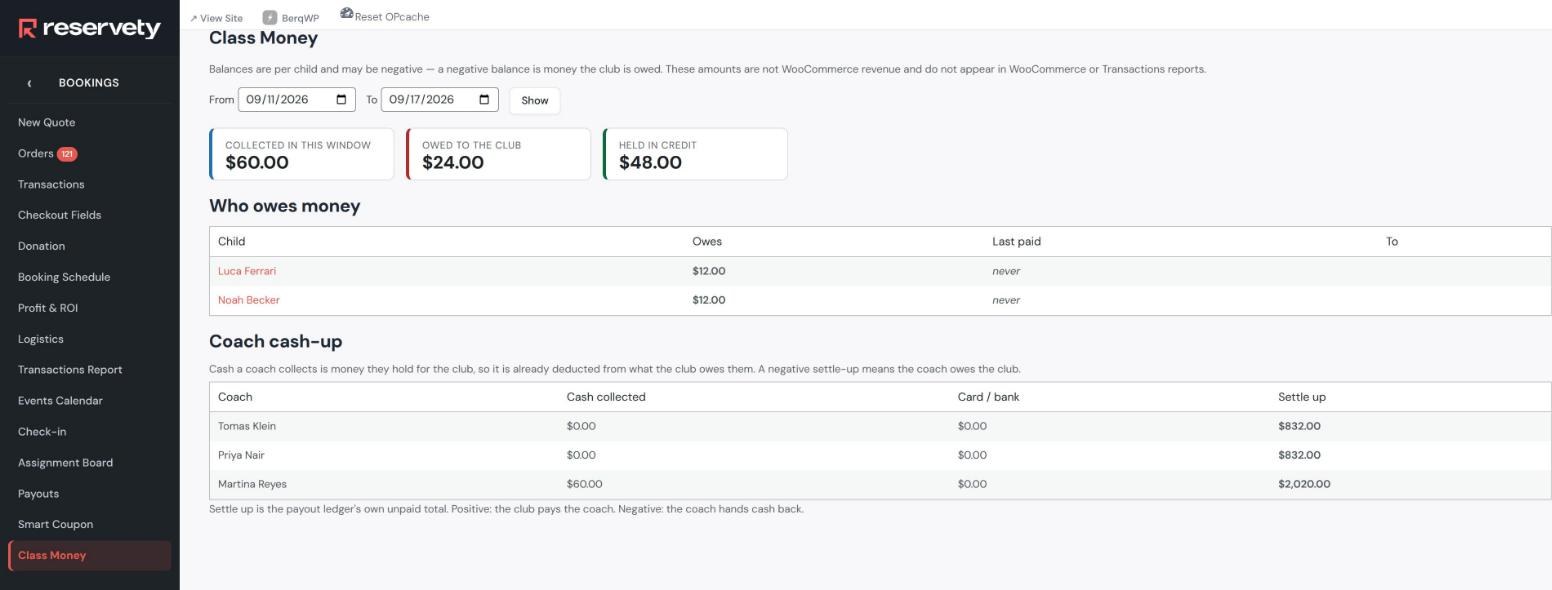
That last column is not a separate report. Cash a coach collects is money they are holding for the club, so it is deducted from what the club owes them — on the coach’s own payout ledger, next to the sessions they taught.
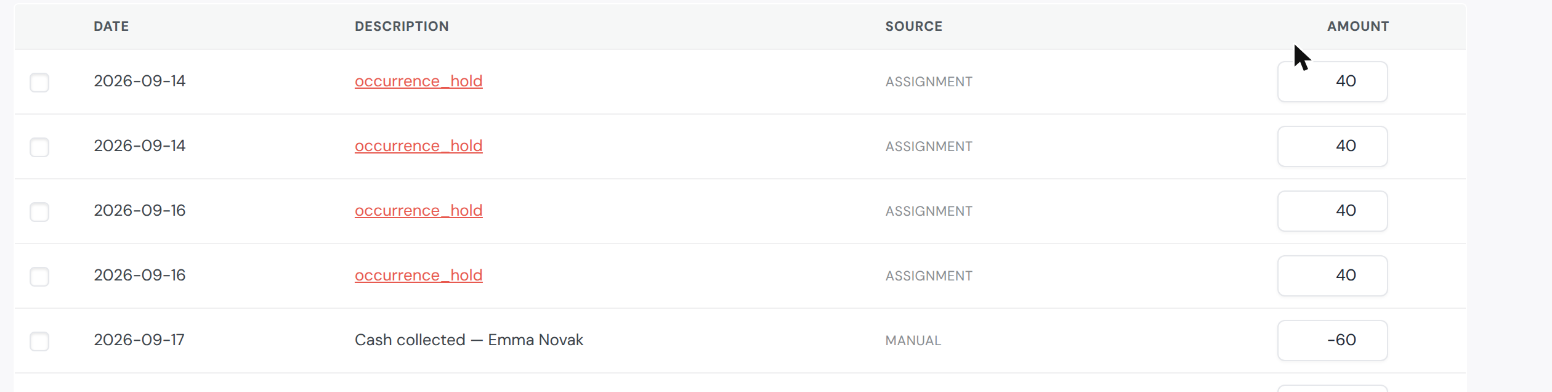
What this is not. These amounts are a club ledger, not shop revenue. They never touch orders, deposits or the Transactions report, which is what keeps cash at the net from disturbing the rest of the system — and what a club’s accountant needs to know before relying on it.
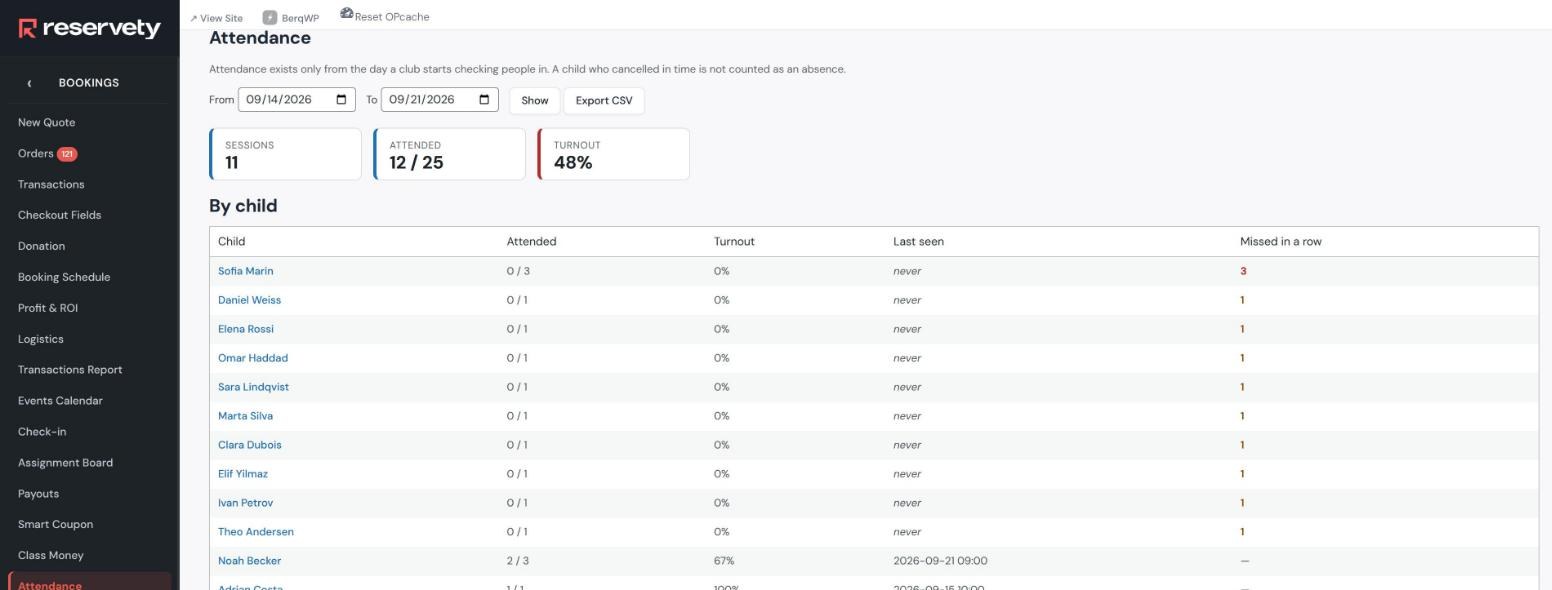
WooCommerce → Attendance, over any date range. Sorted worst first, because the child quietly drifting away is the one you want at the top — not buried alphabetically.
And the same range session by session — the answer to “who was actually there on the fourteenth?”
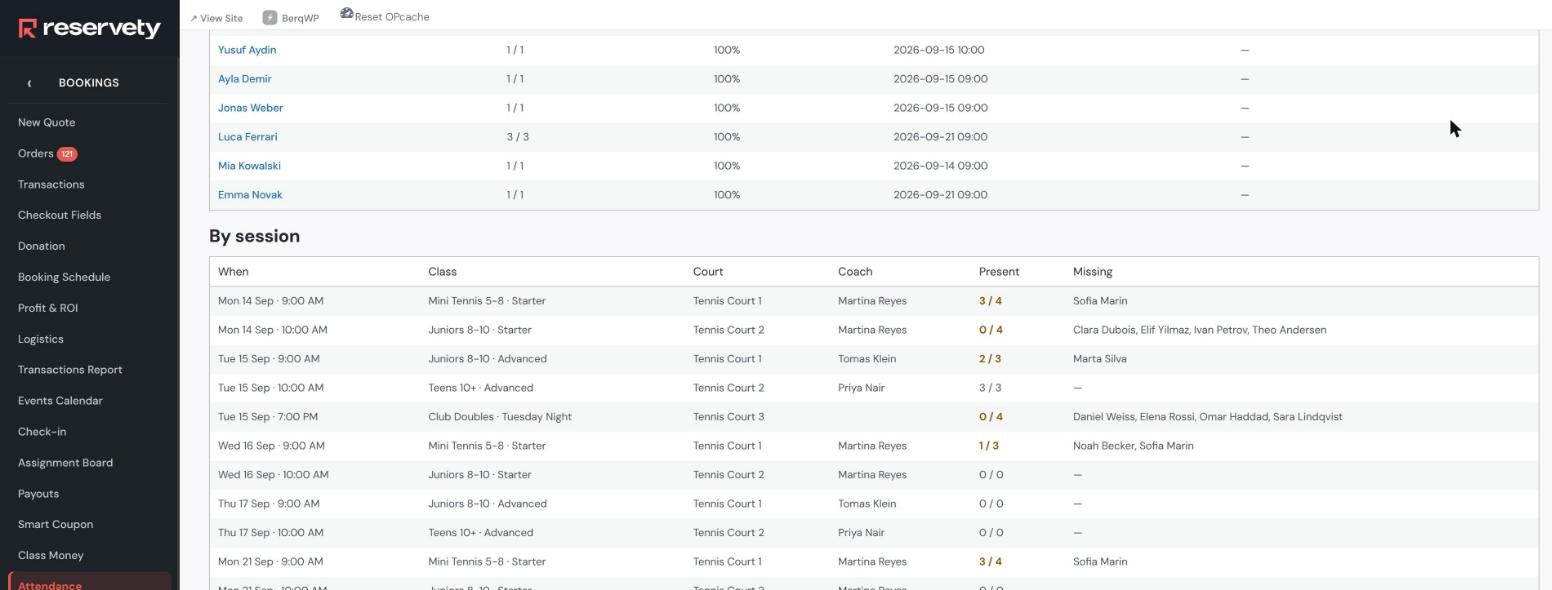
A cancellation is not an absence. A child who told the club in time is dropped from expected entirely, not counted as a no-show. Counting it against them would make the one honest thing a family can do look identical to not turning up. Attendance also only exists from the day a club starts checking people in — there is no history before that, and the screen says so.
Five courts, two audiences. The club has to hold what it needs and sell the rest — and the adults who play every Tuesday need no coach at all.
They differ in what they can tell you afterwards, which is the only thing that matters when choosing between them.
| A coach-less session | who has it, who came |
| A slot-quantity rule | how many are left |
| A plain block | nothing |
The club’s regular adult four is the first case: Club Doubles · Tuesday Night is an ordinary session with a capacity of four and Tennis Court 3 attached to the whole series — and no coach. Because it is a session it inherits everything sessions get: it appears on the calendar and the board, the four players are enrolled and can cancel themselves, reminders go out, the court is genuinely held, and there is a register.
Why not just block the court. A block takes the court off the market and tells you nothing: not who has it, not whether they came, not whether a fifth player could join. Keep blocks for the cases with nobody to track — resurfacing, a storm, a corporate hire.
Private Lesson (1–2 players) runs 16:00–19:00 Monday to Friday at $45 an hour, three at a time — one per coach. The customer either chooses their coach or lets the club decide, and a coach teaching a squad at that hour is not offered, because the class assignment already holds their time.

The public books Tennis Court Booking by the hour at $18. It never names a court: five units sit behind it and a free one is handed out. A class holding Court 1 removes one unit from that pool for that hour — it does not take the product off sale.

Screenshots are of the running system, unretouched, captured on a live demo club.
Reservety handles your website, bookings, inventory, and payments — so you can focus on growing your business.